Inventory Filters
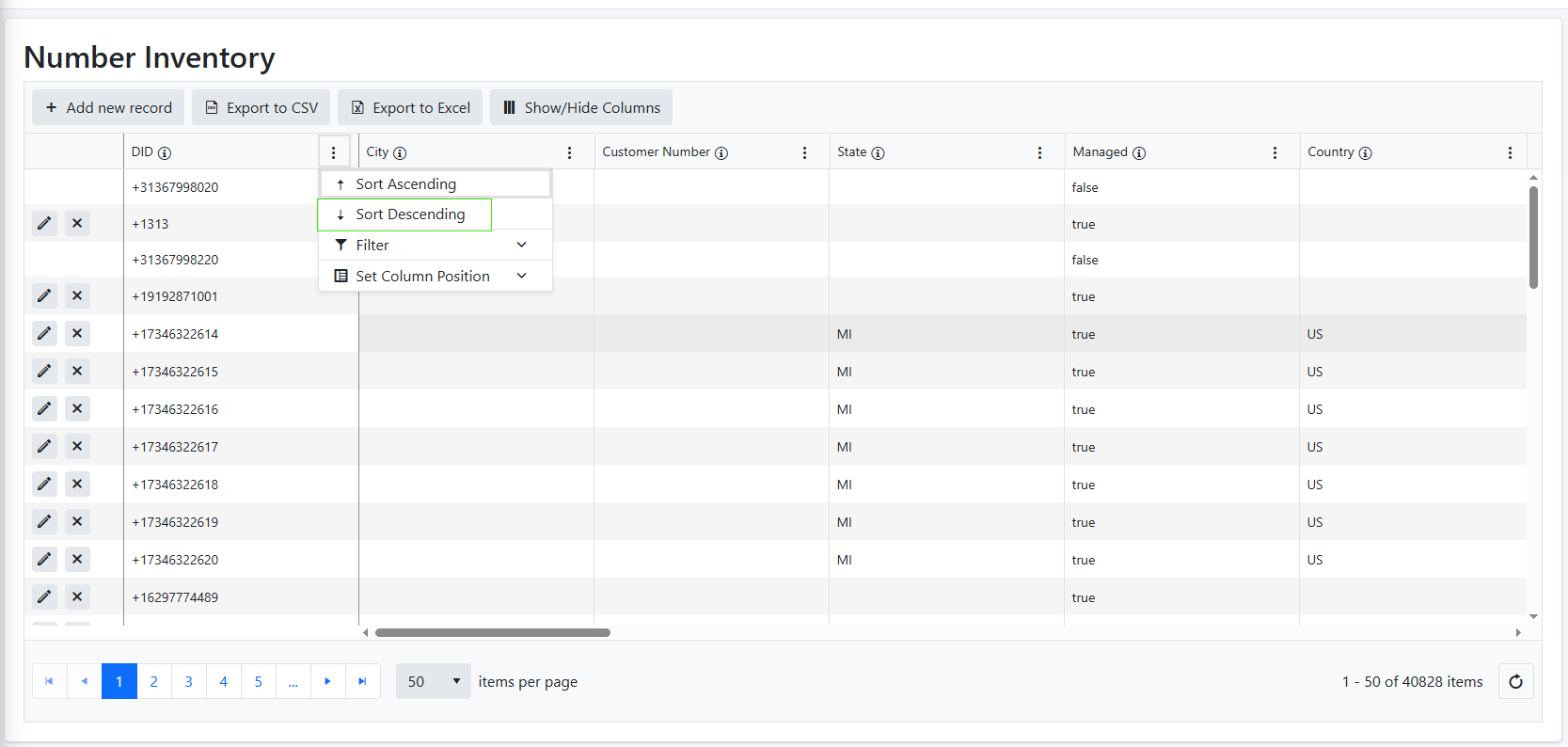
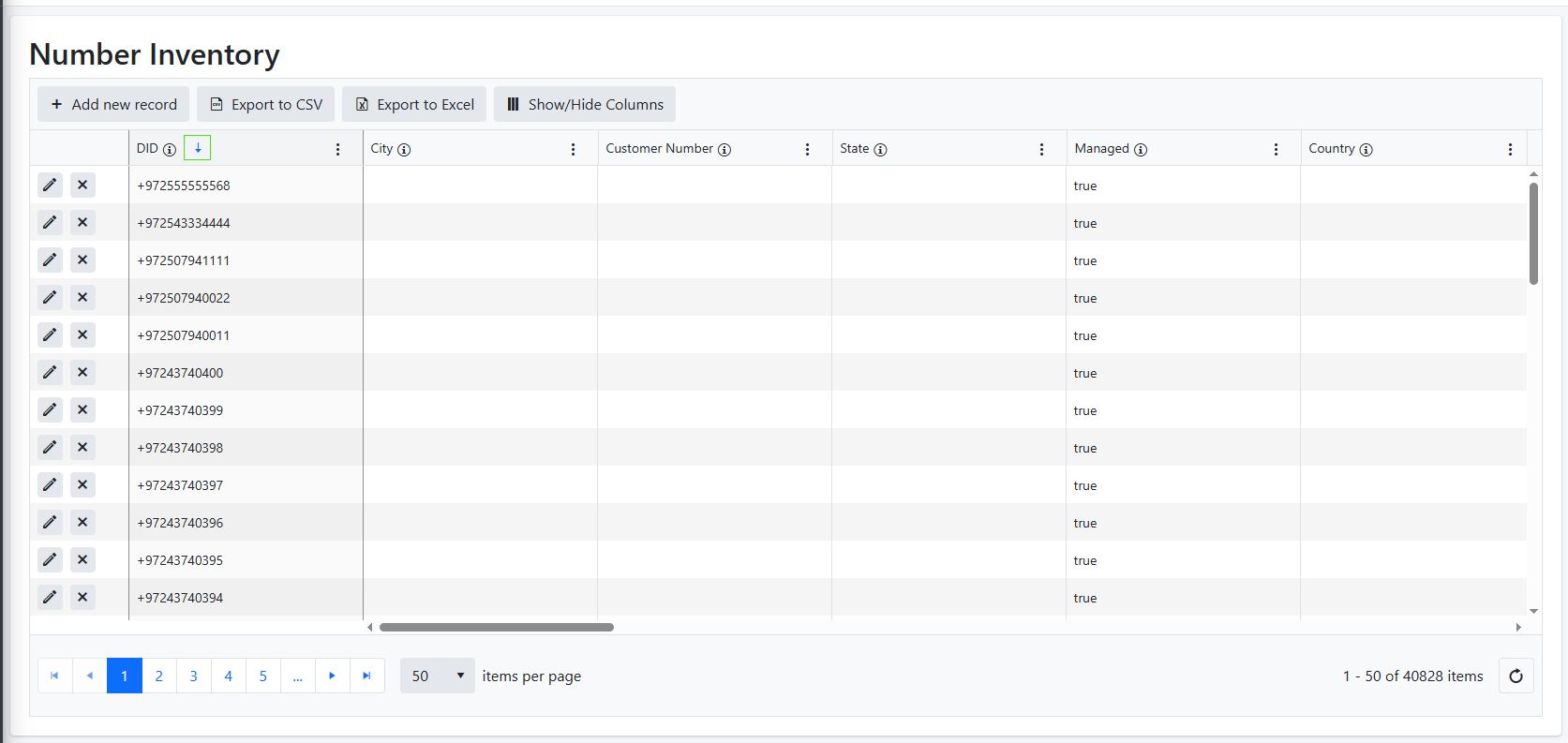
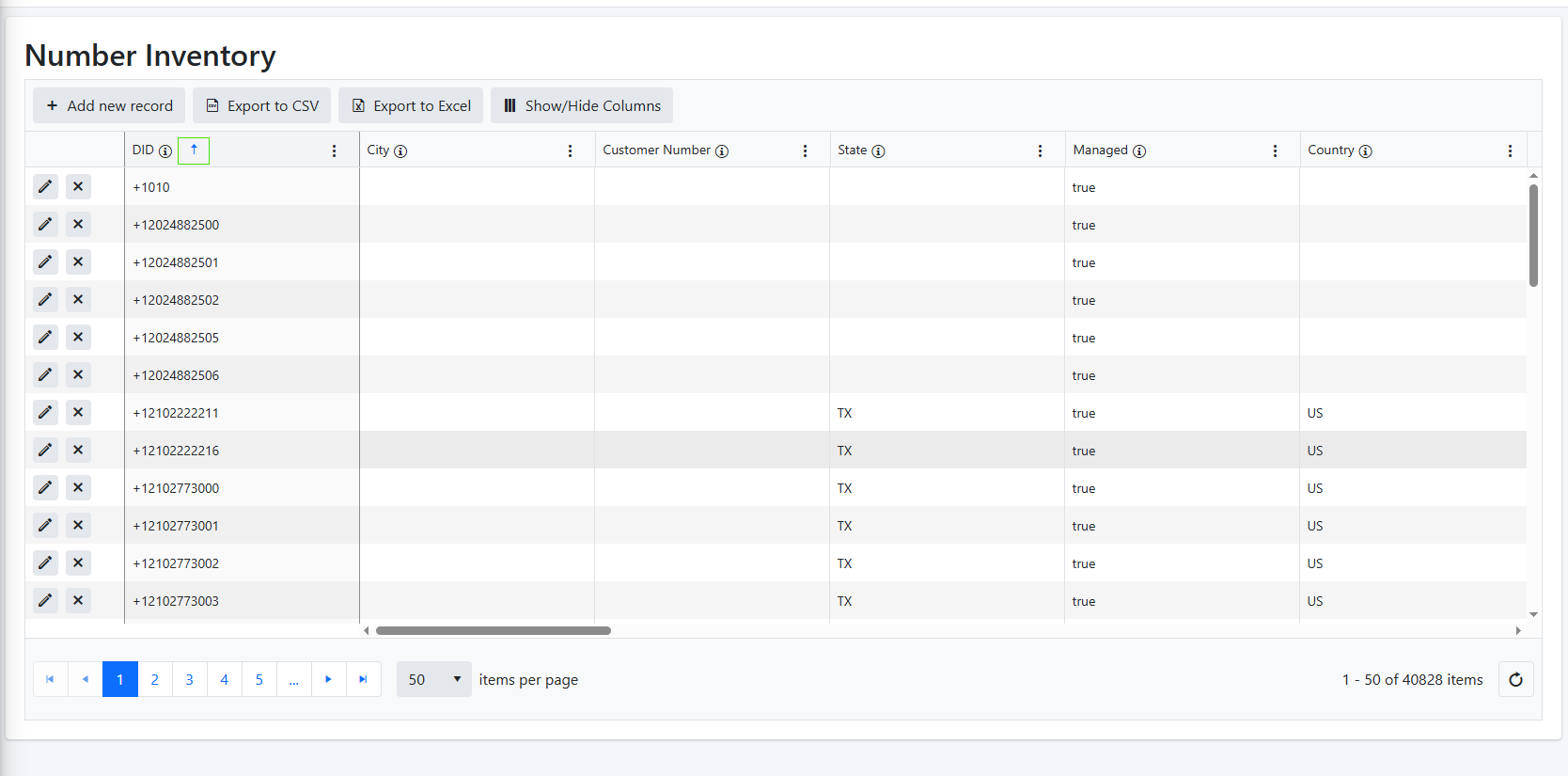
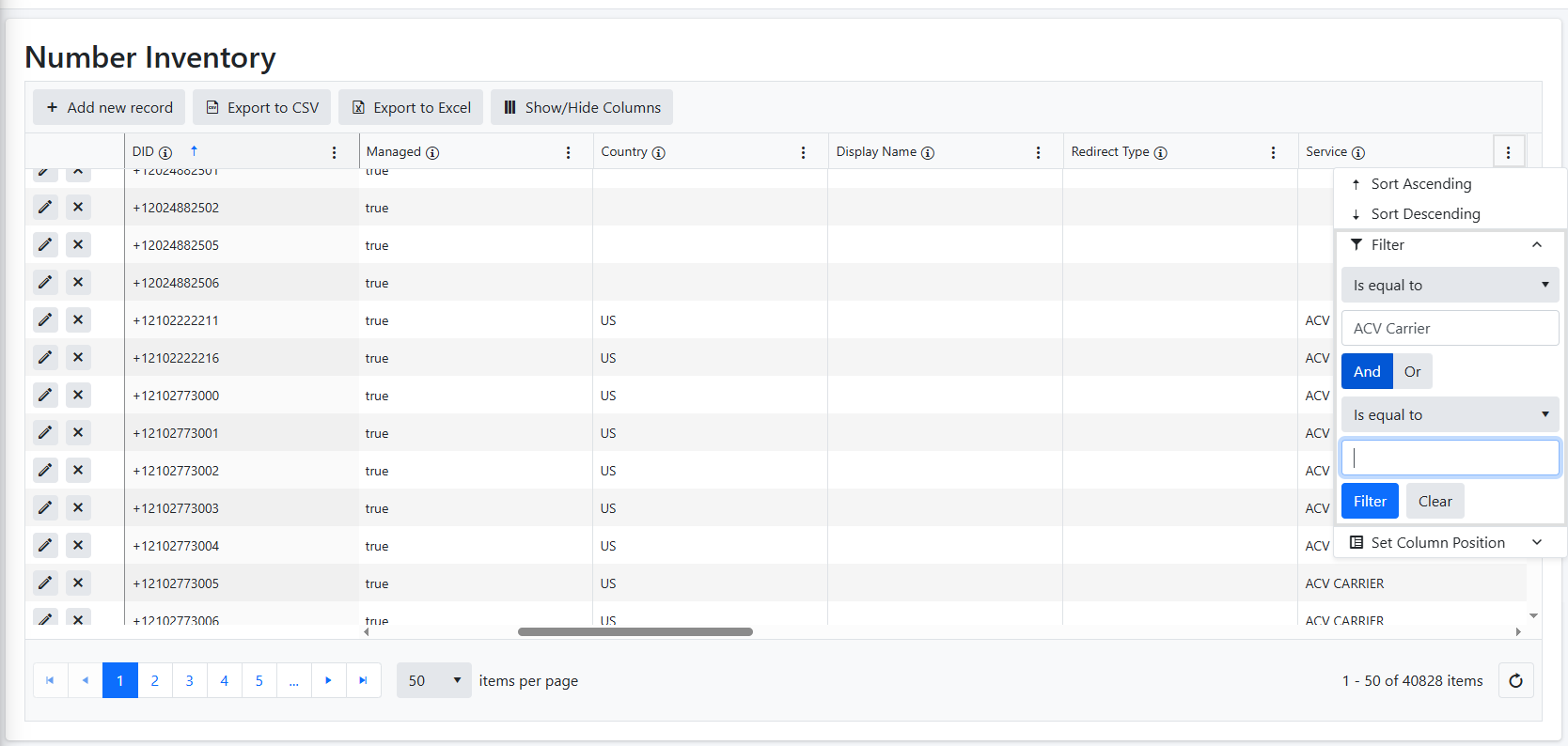
| ■ | Click the dots adjacent to any column. A menu is displayed. You can sort either in Ascending or Descending order. For example, in the figure below, the Number column is selected and the numbers are sorted in Descending order. Note the downward arrow is displayed after the data has been sorted. If you then sort in Ascending order then the Upward arrow is displayed. |
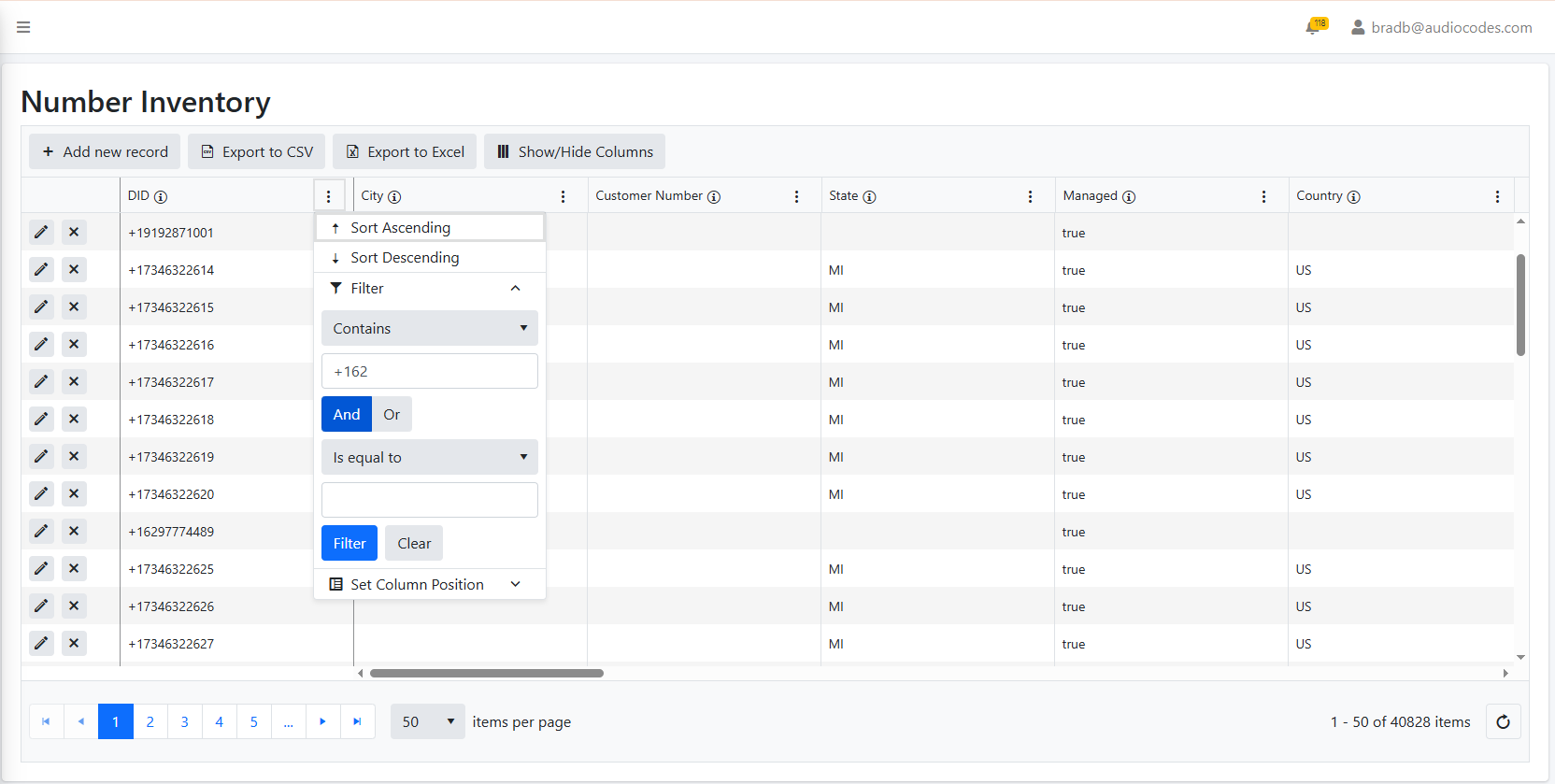
| ■ | Click the down arrow adjacent to the Filter option. The Filter dialog is displayed. |
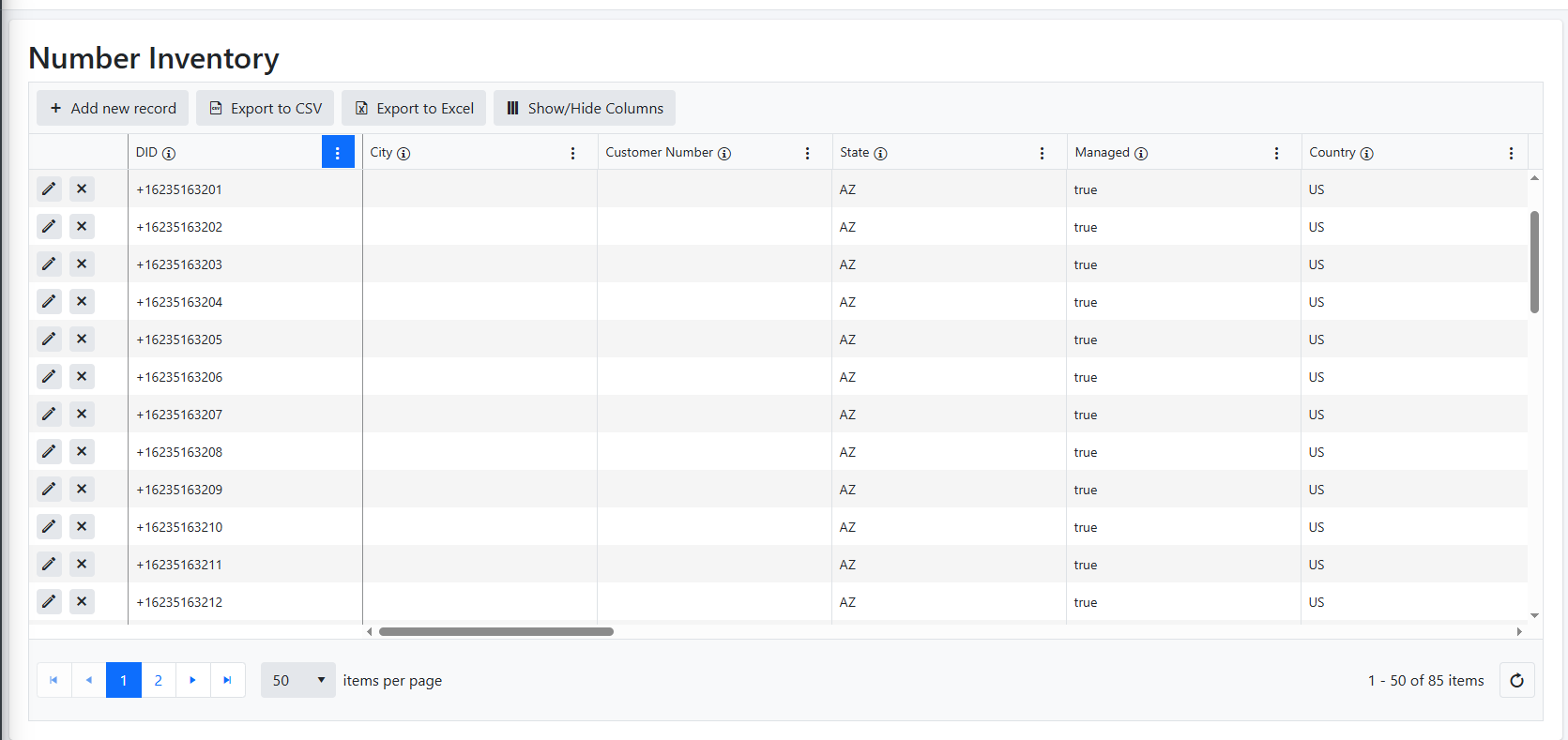
| ● | In the example below, the filter for the Phone Number column is set to search for all numbers containing the digits '+162'. |
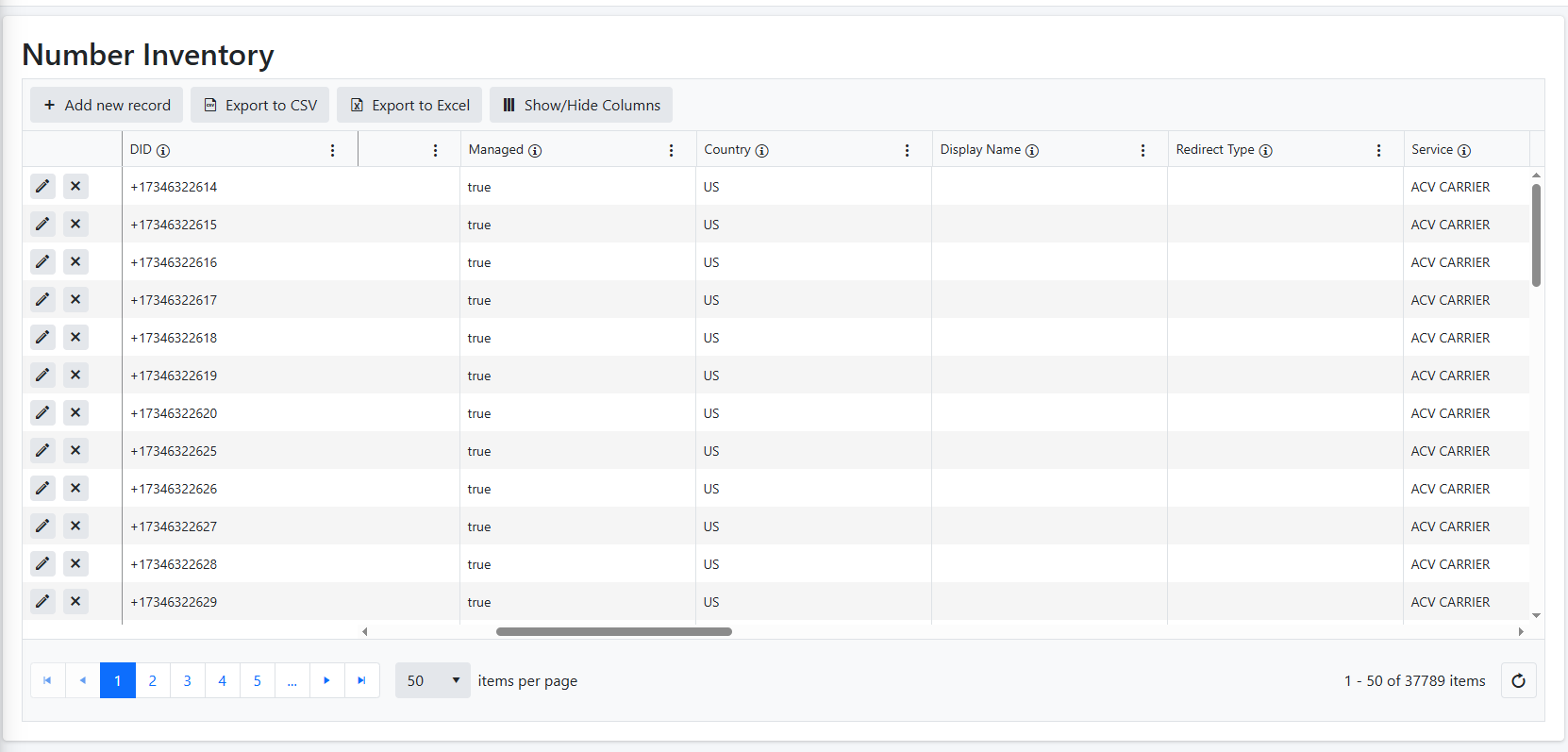
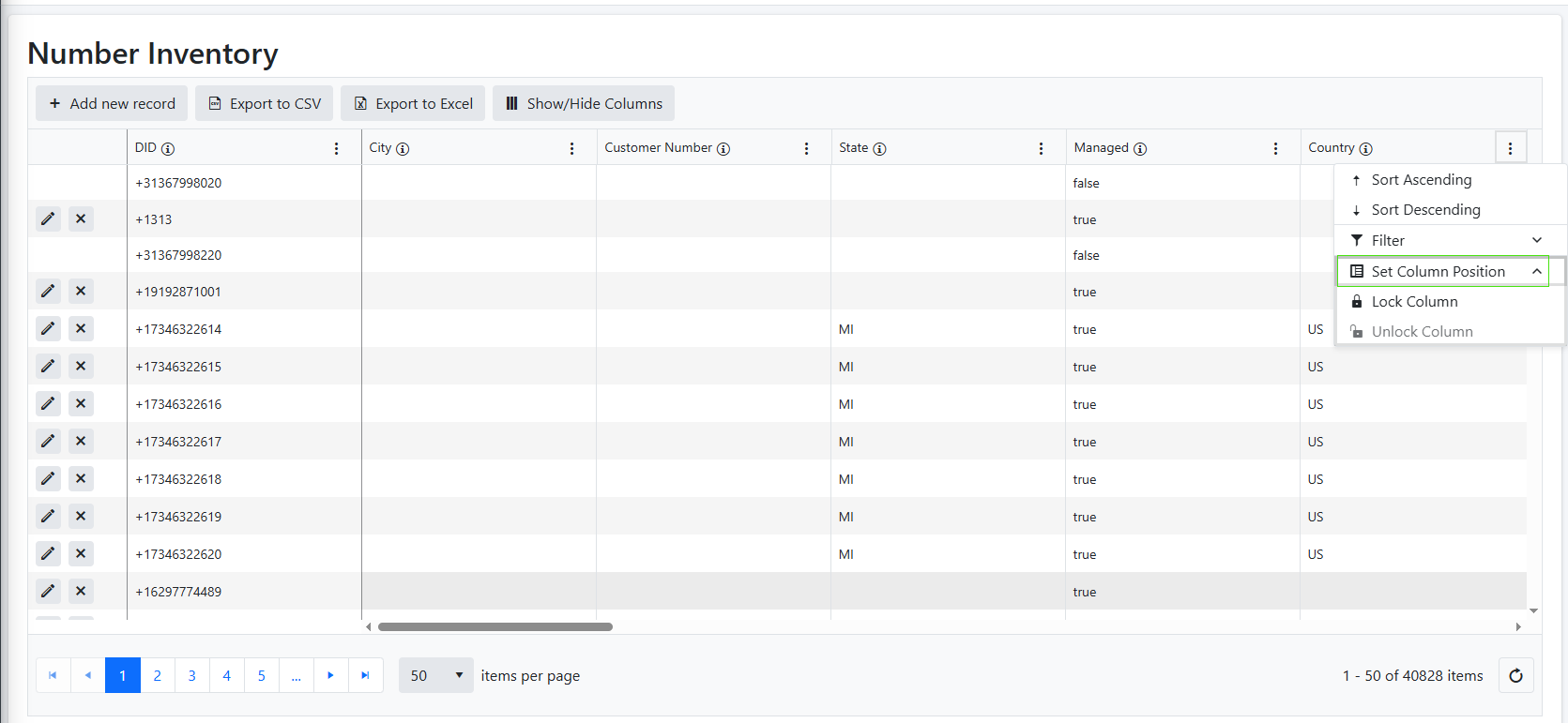
| ■ | Click Set Column Position to change the order of the columns. Click Unlock Column and drag the column to the desired position. |
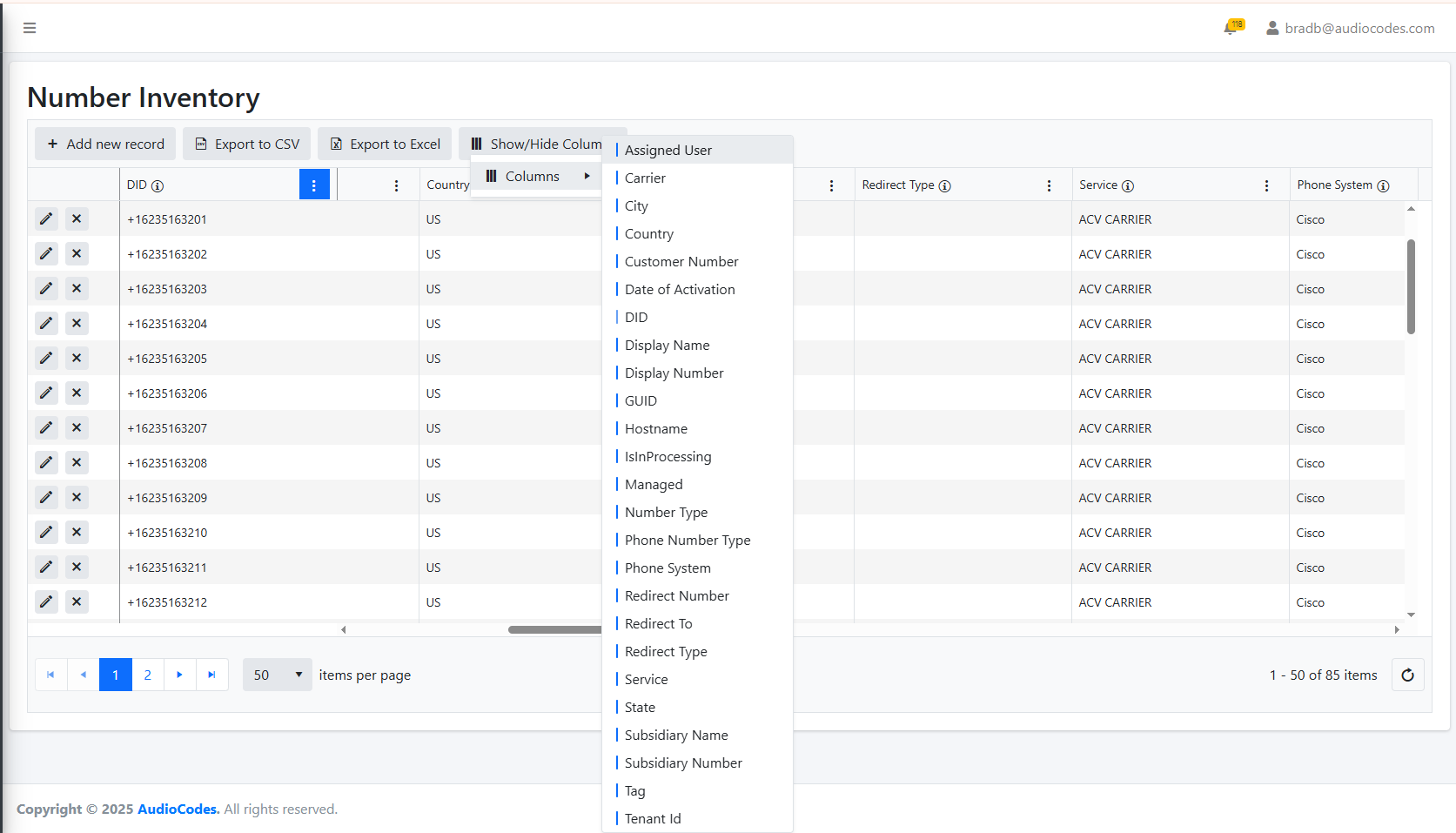
| ■ | Column attributes can be filtered by selecting the check box adjacent to the desired attribute to display. Attributes are configured by AudioCodesProfessional services in the Live Platform database. |